PressSync is an application for managing your WordPress blog easily from your iPhone or iPad
PressSync supports WordPress.com and WordPress.org(more than Ver3.5)
Main functions
- Listed in the draft and published separately
- To display a lot of information in the list (title, datetime, post status, author(optional), content, thumbnail, categories, tags)
- HTML input support(Snippet call is available)
- You can define your own HTML input support
- Upload the media without losing the EXIF info(To protect your privacy, you can remove only the geotags)
- Insert image tag from media that already uploaded
- Editing function of the image tag(Thumbnail button will appear when you move the cursor over the image tag)
- Categories and Tags management
- Your blog settings management(Only items that can be changed in the XmlRpc API)
- iTunes Store link generation function(You can define your own output format, such as Struts notation of Java)
- Share function(mail, sms, twiiter, facebook)
- Multiple blogs support
- Error logging(for customer support)
- Multiple blogs support
*Does not support to the “Comments” in the current version.
Please see the screenshot.
PressSync is a simple design, such as Twitter clients like.
- Log in to WordPress
- Check it out Root screen
- To refresh the display contents of the “Published”, “Draft”, “Media”.
- How to display the contents of the article has already been posted
- How to edit an existing article or create a new article
- How to insert a photo to a post
- Insert an image tag
- Modify the image tags that have been created
- Advanced input method of post editing screen
Log in to WordPress
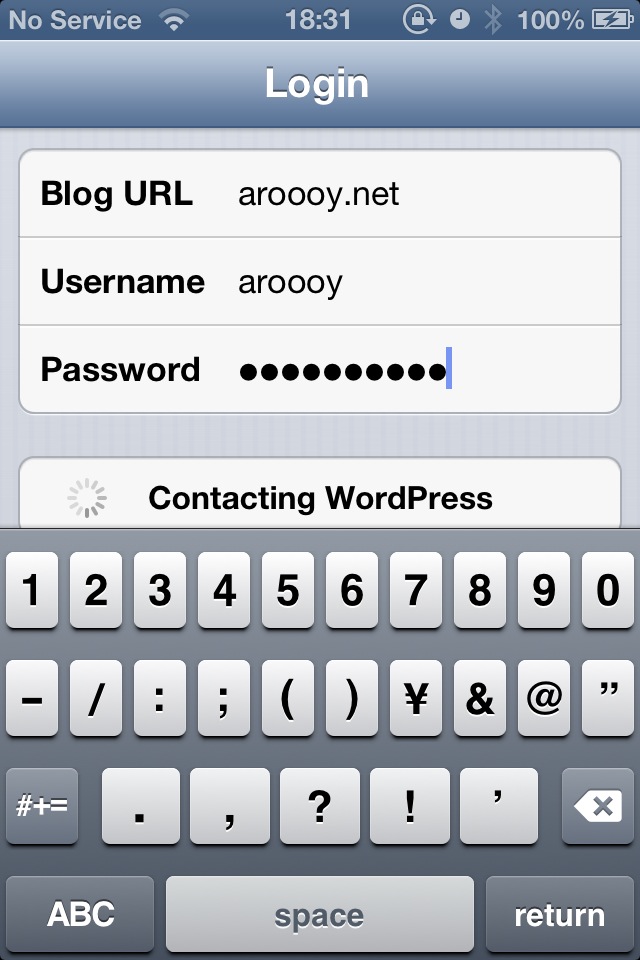
URL: Blog URL
Username: User name of WordPress
Password: Password of WordPress: Password
Please tap the “Log in” button after entering all the items.
※ PressSync determines the AppEndPoint based on the “Blog URL”.
If the full URI of xmrpc.php has been entered, it will be treated as AppEndPoint.
Check it out Root screen
PressSync consists of tabs of “Published”, “Draft”, “Local”, and “Media”.
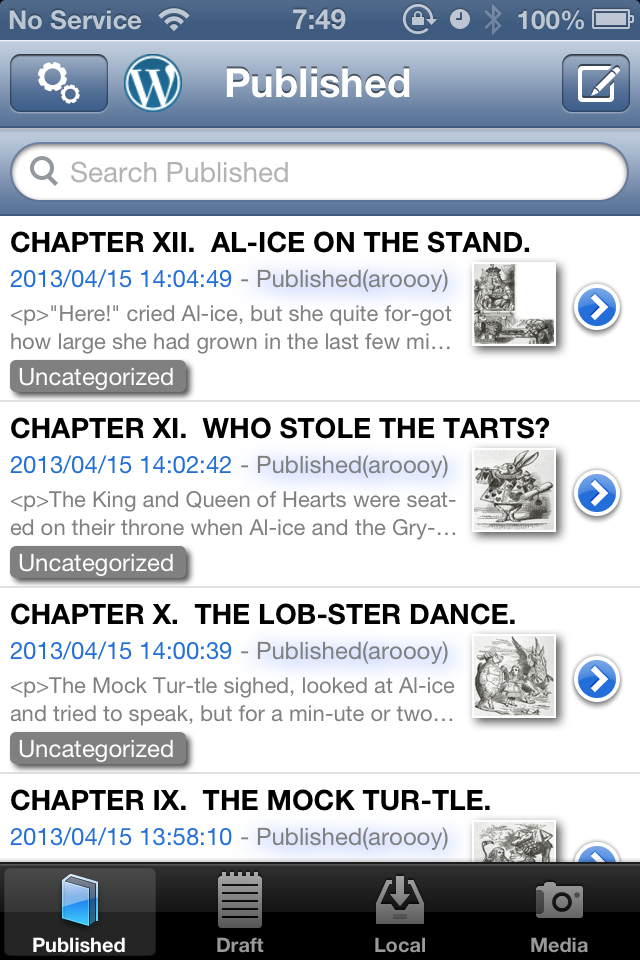
The contents of a display of “Published” and “Draft” tab
The entries published is displayed on “Published” tab.
Appears in the “Draft” tab entry otherwise.
The contents of a display of “Local” tab
The entry saved at the iOS device is displayed on “Local” tab.
The contents of a display of “Media” tab
WordPress media will be displayed on “Media” tab.
To refresh the display contents of the “Published”, “Draft”, “Media”.
The contents of the list is up to date and do a pull-down in each tab.
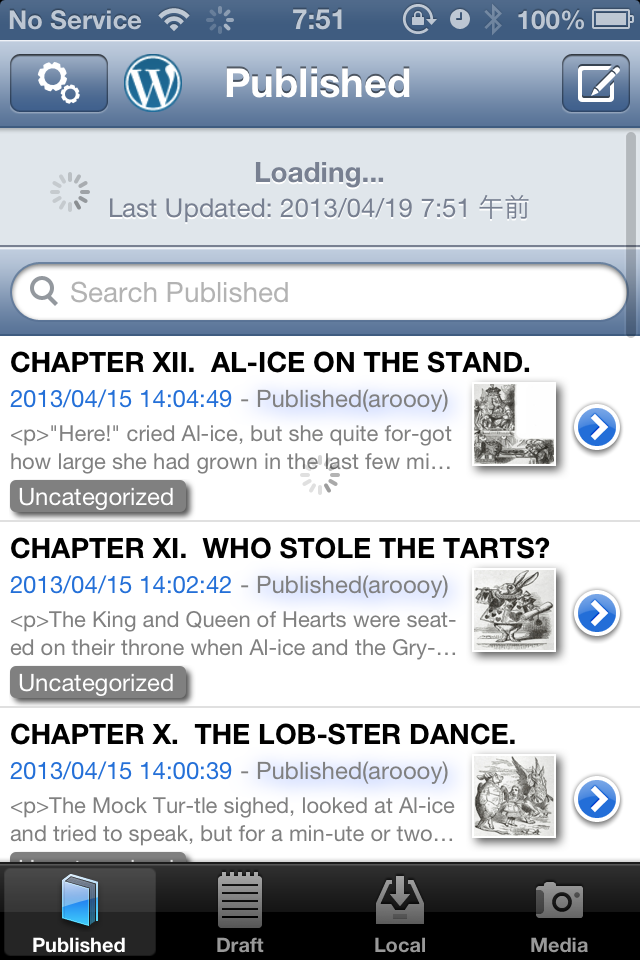
※ I called the pull-down refresh this operation later.
How to display the contents of the article has already been posted
“Edit Post” Tap to launch any cell in the “Published”, “Draft”.
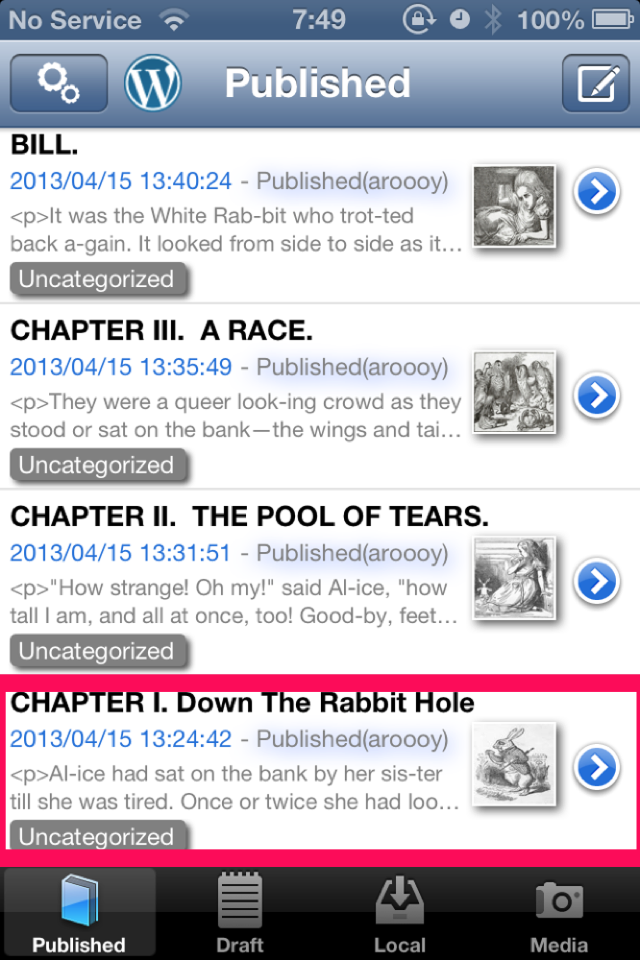
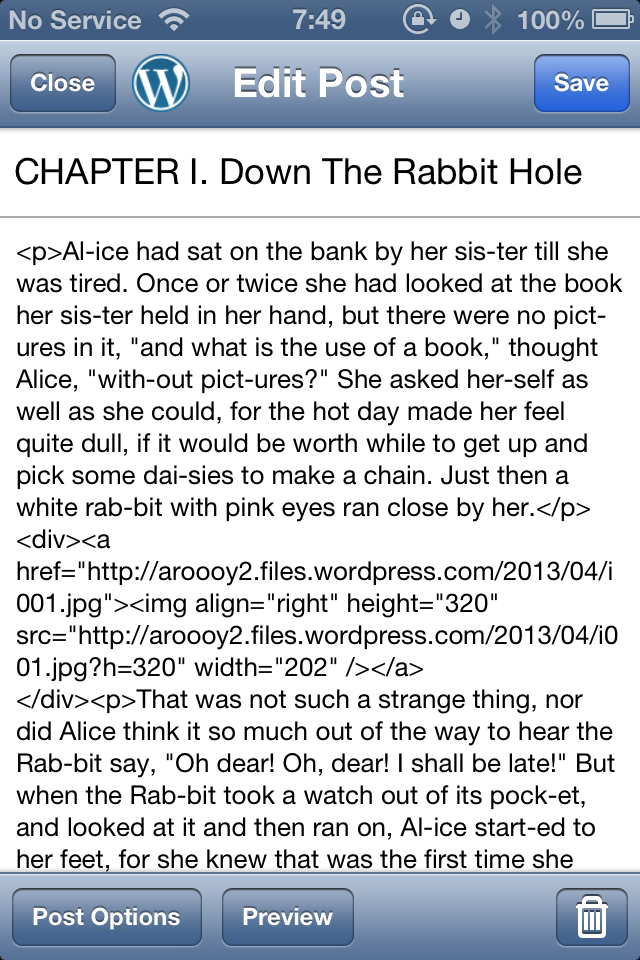
“Media Viewer” Tap to launch any cell in the “Media”.
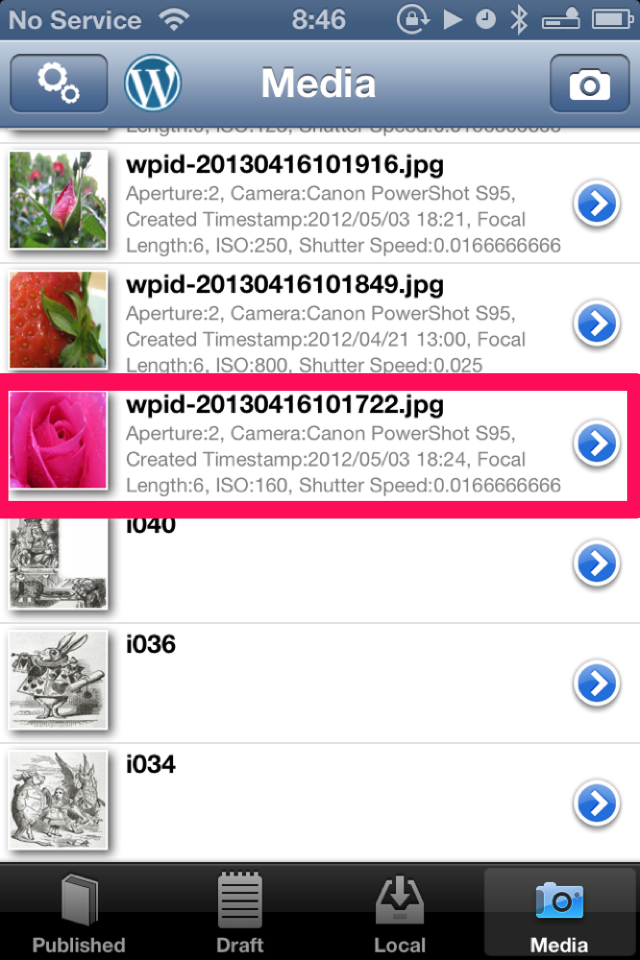
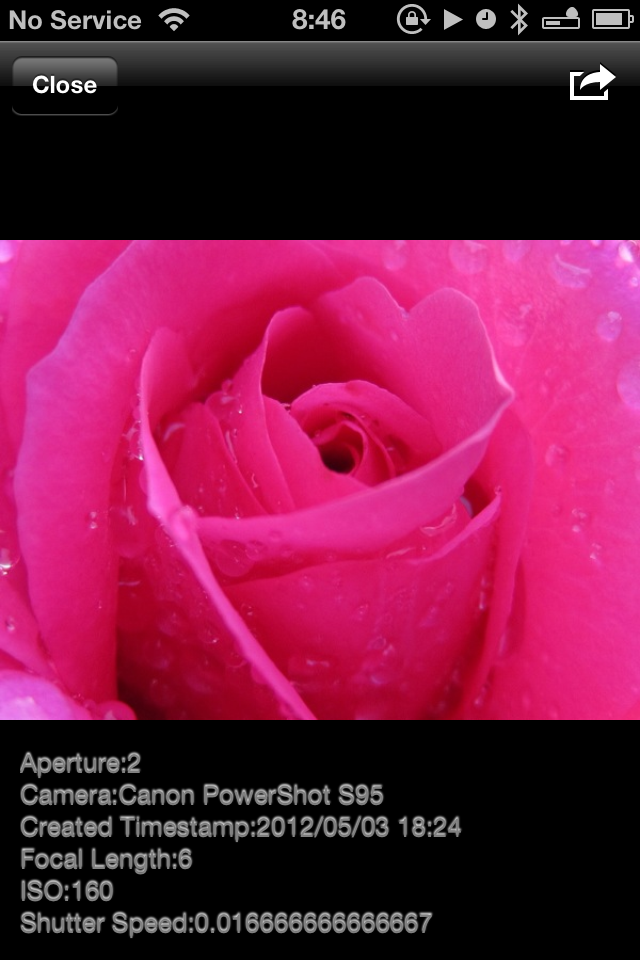
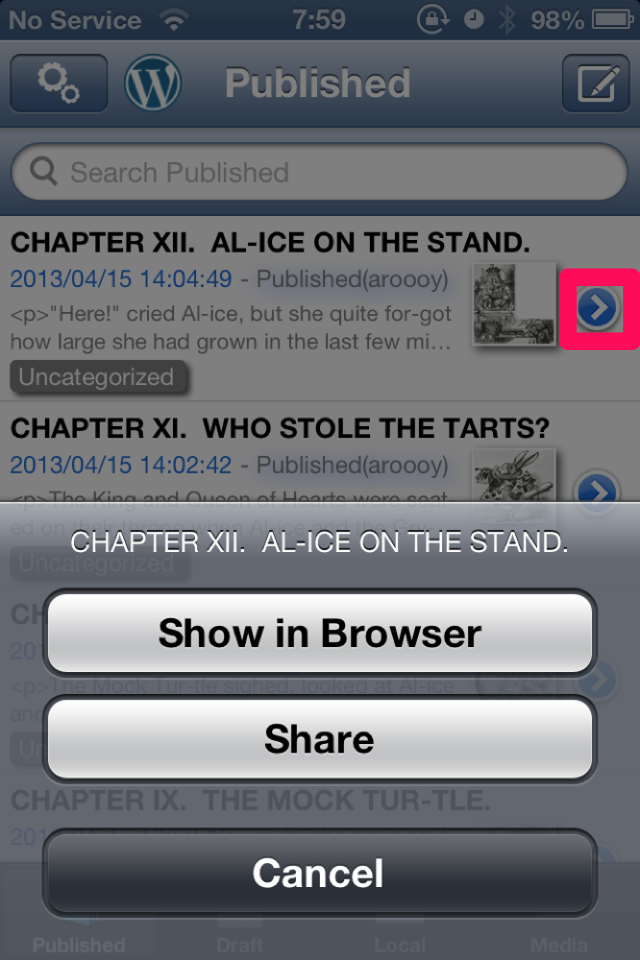
Action sheet appears when you tap the accessory button on the far right in the cell.
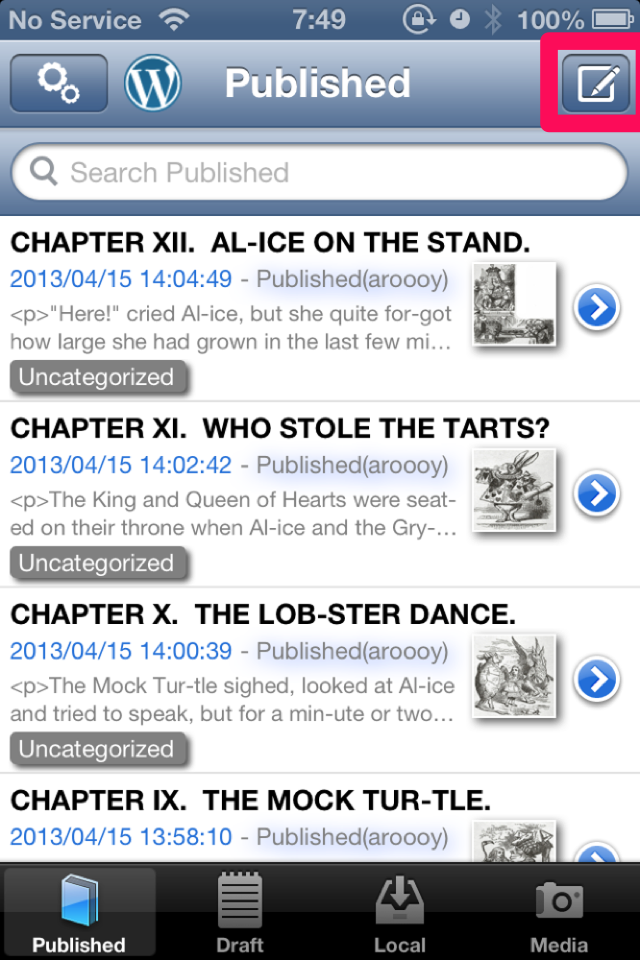
How to edit an existing article or create a new article
“New Post” is activated when you tap the pencil button in the upper right corner of the “local”, “draft”, “published”.
“Edit Post” Tap to launch any cell in the “Published”, “Draft”, “Local”.
Tap the “Save” button to do any input title and body text box.
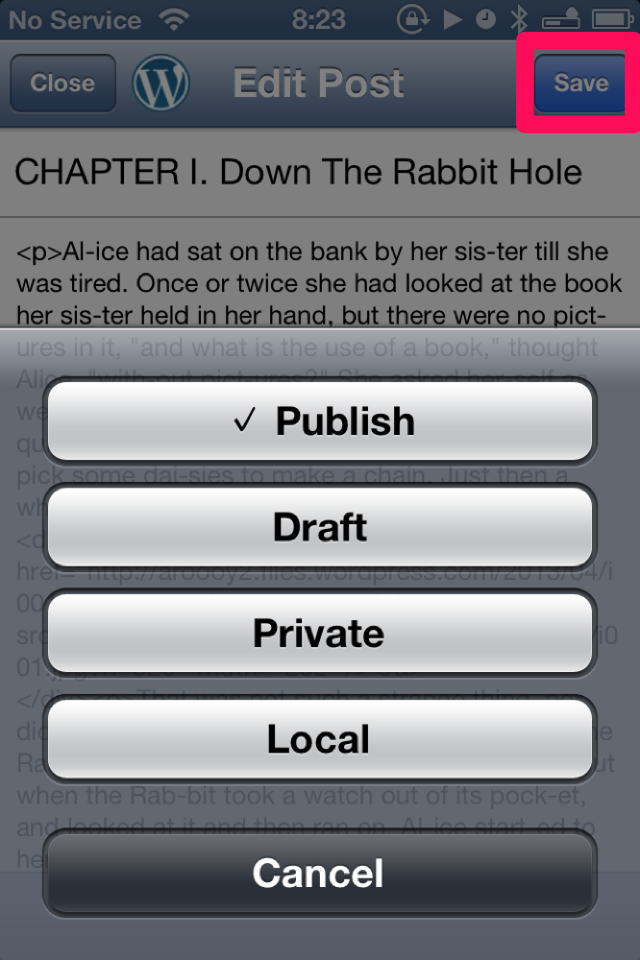
Please select one of the “Publish”, “Draft”, “Private”, “Local”, “Cancel”.
How to set options in the post
Tap the button “Post options” at the bottom left of the screen.
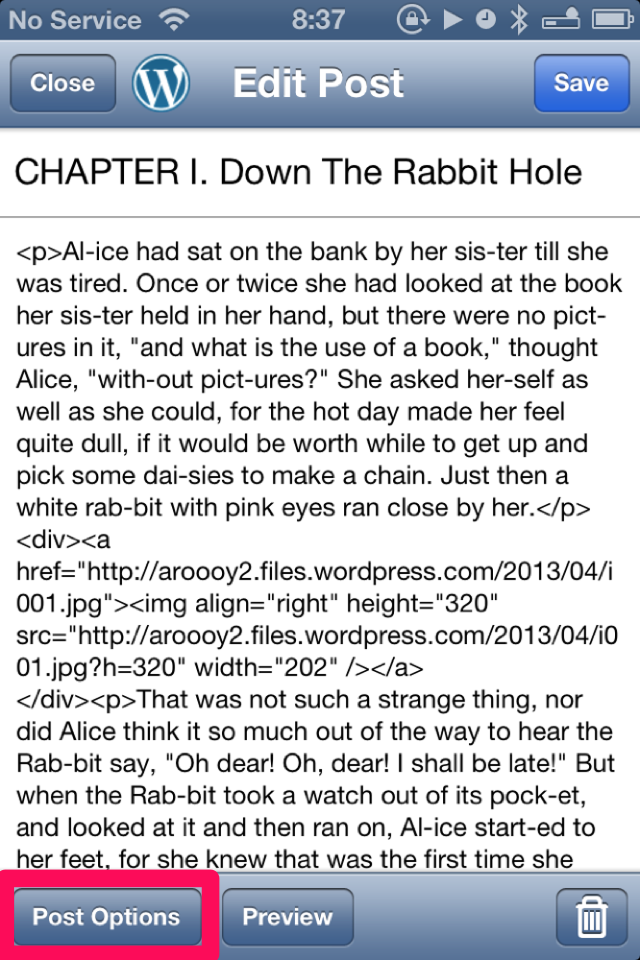
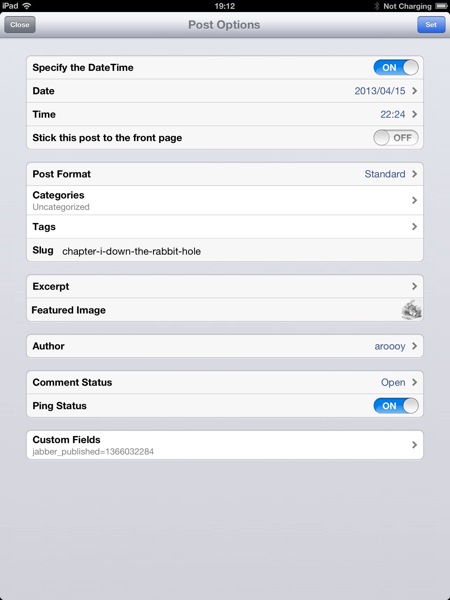
Tap the “Set” button to enter each item.
Please tap if you want to cancel your entries if the “Close” button.
Tap the “Save”, please save your post.
How to insert a photo to a post
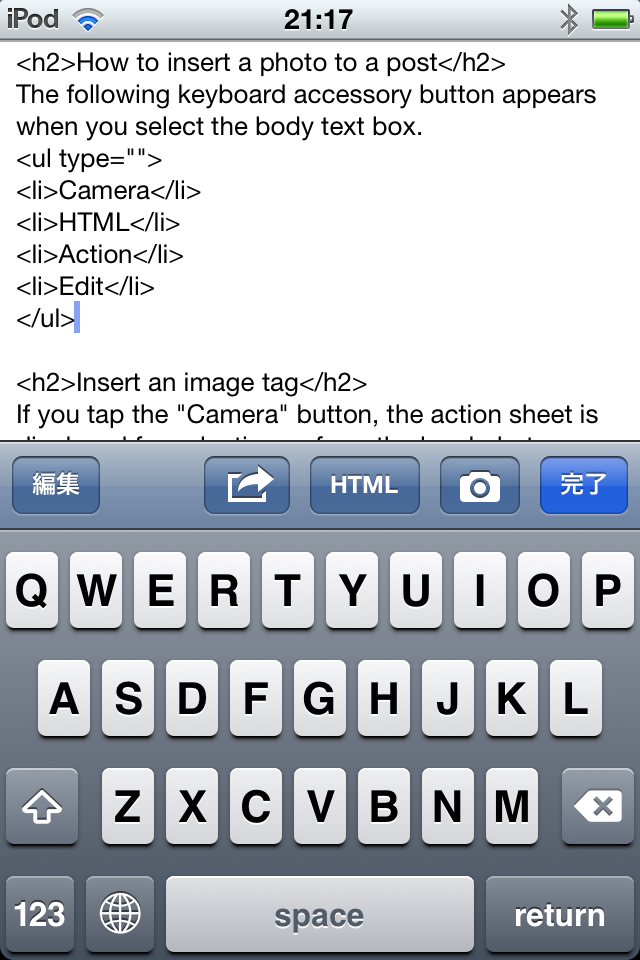
The following keyboard accessory button appears when you select the body text box.
- Camera
- HTML
- Action
- Edit
Insert an image tag
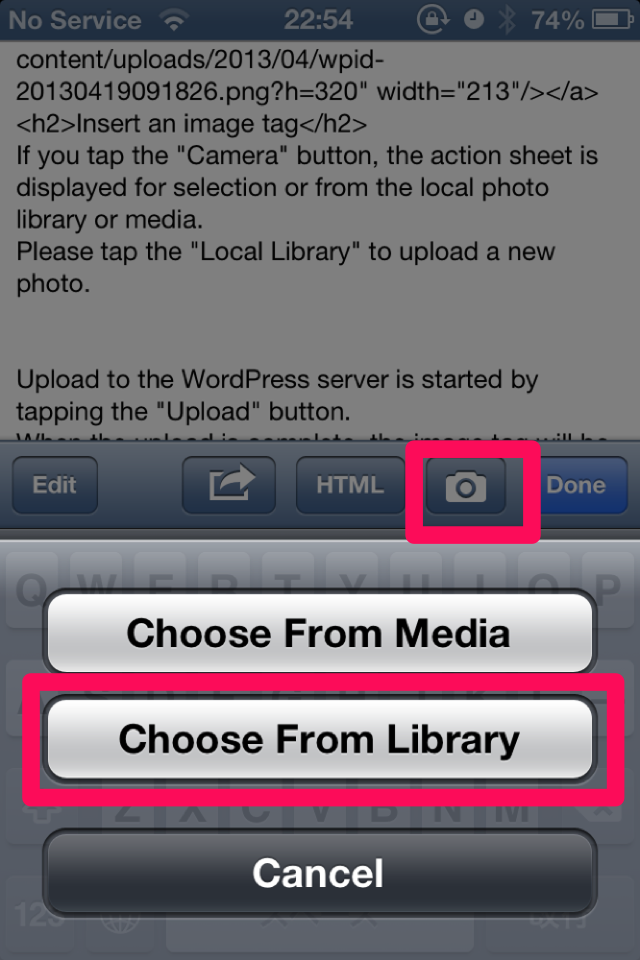
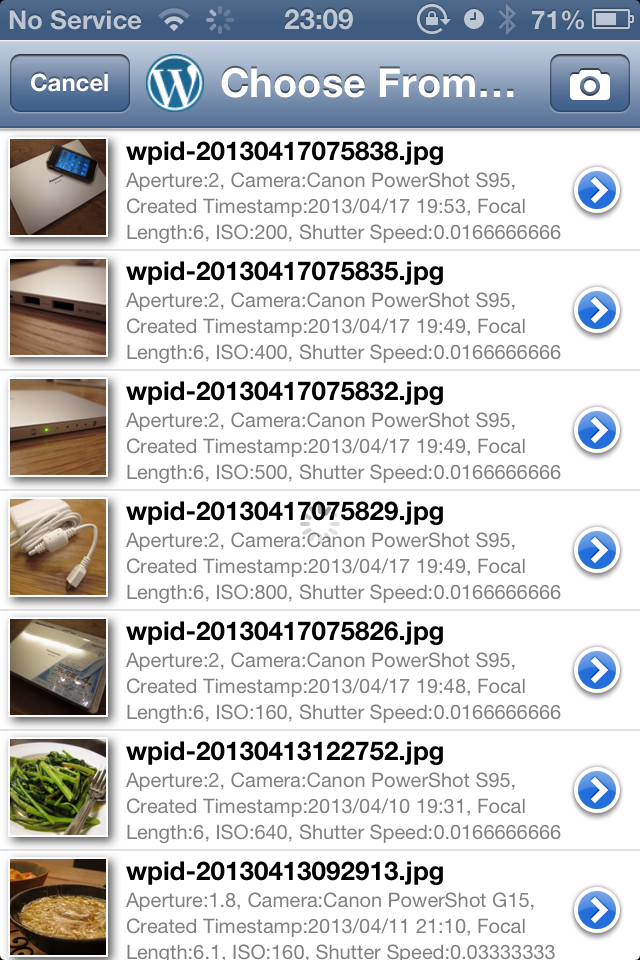
If you tap the “Camera” button, the action sheet is displayed for selection or from the local photo library or media.
Please tap the “Local Library” to upload a new photo.
Upload to the WordPress server is started by tapping the “Upload” button.

When the upload is complete, the image tag will be inserted into the text box.
If the “immediate upload” in the account settings are set to Off, the provisional image tag will be inserted in the text box.
In this case, when the post is made, uploading is performed in a continuous provisional image tag.
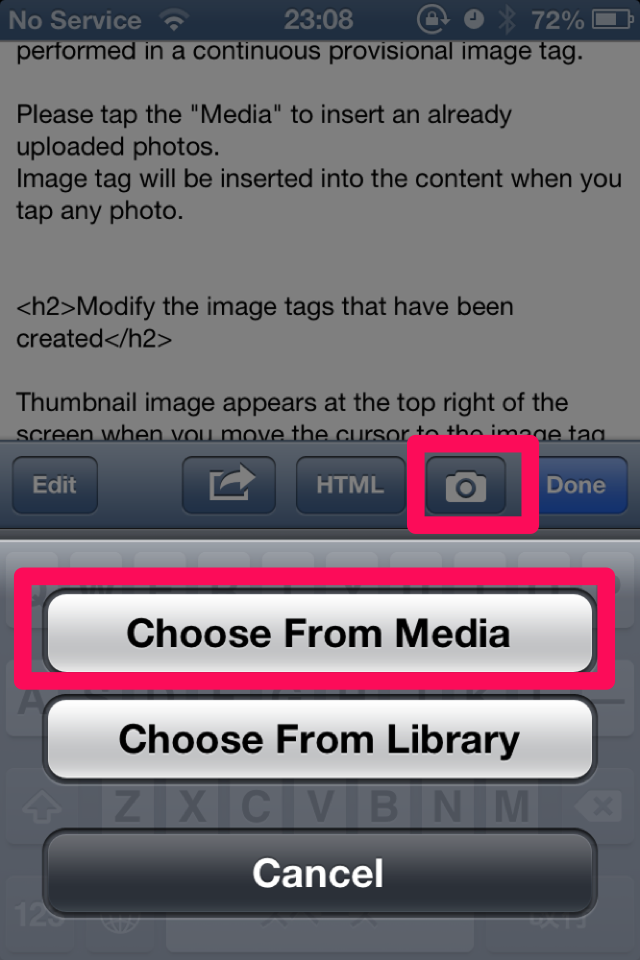
Please tap the “Media” to insert an already uploaded photos.
Image tag will be inserted into the content when you tap any photo.
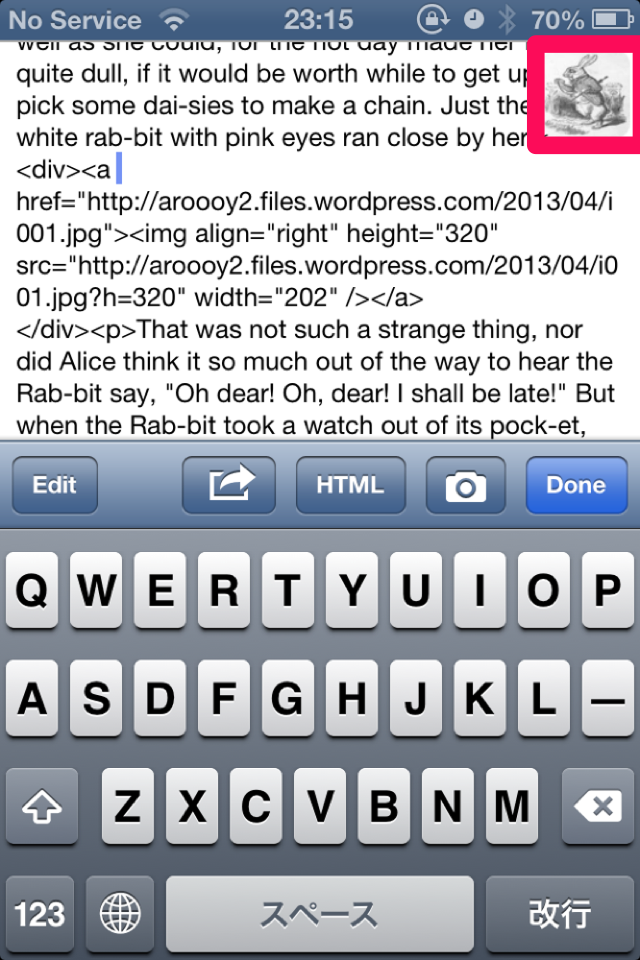
Modify the image tags that have been created
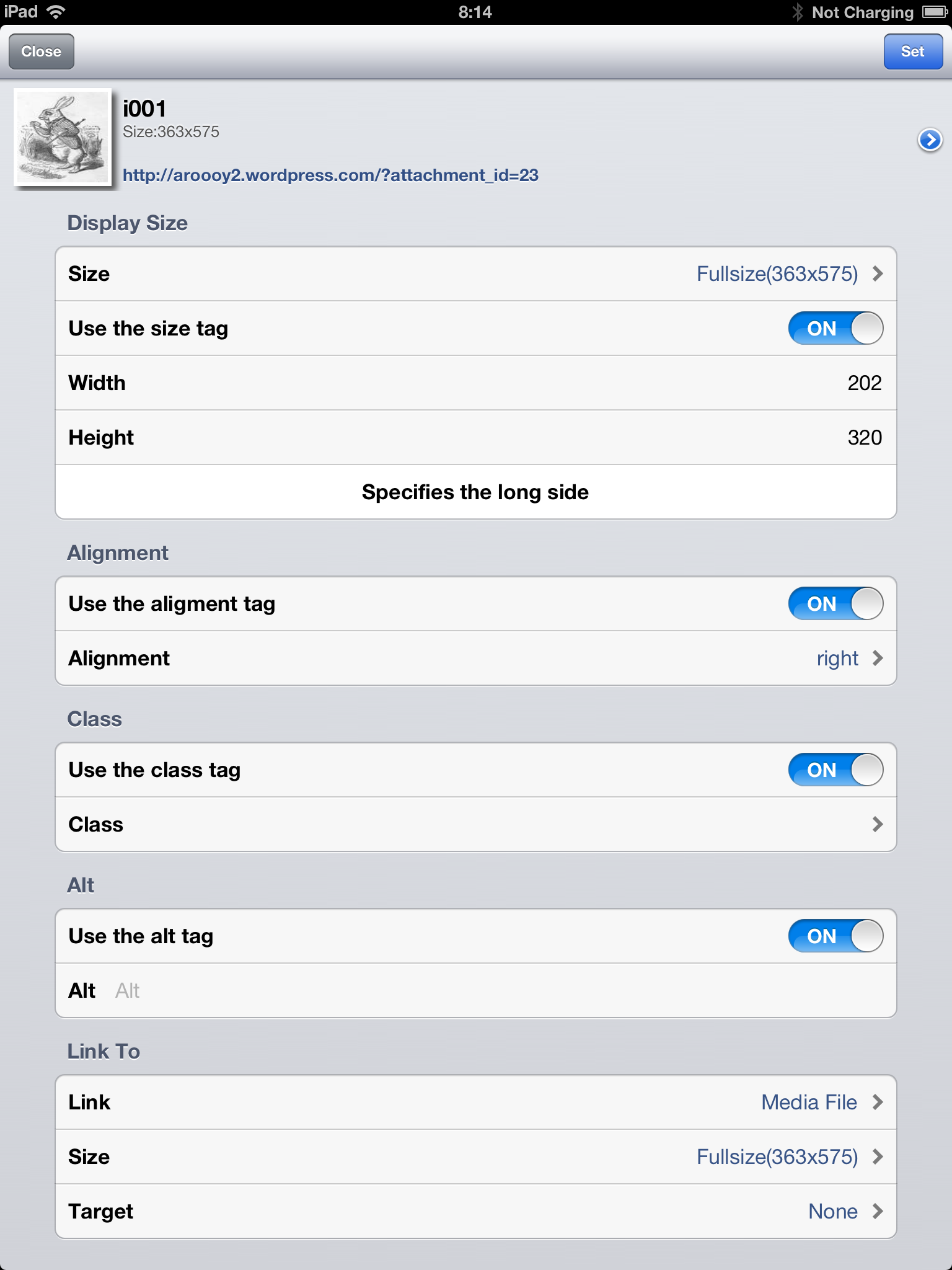
Thumbnail image appears at the top right of the screen when you move the cursor to the image tag. Image tag edit screen to start and tap it.
Please tap the “Set” button to do any input each item.
Advanced input method of post editing screen
PressSync has a support function for inputting the HTML.
Summary
The most basic purpose of this feature is to enter the template text.
The template text up to three parameters are set. Such template text output can dynamically change the portion of the template text.
The Param1 is selected text will be automatically assigned.(If it is not selected is set empty.)
And therefore, Template with a single parameter, all parameters are set when called. So, you may think that the static template is used.
But, please do not forget. The built-in templates for most, that has only one parameter.
Template text that has two or more parameters, a parameter input screen starts.
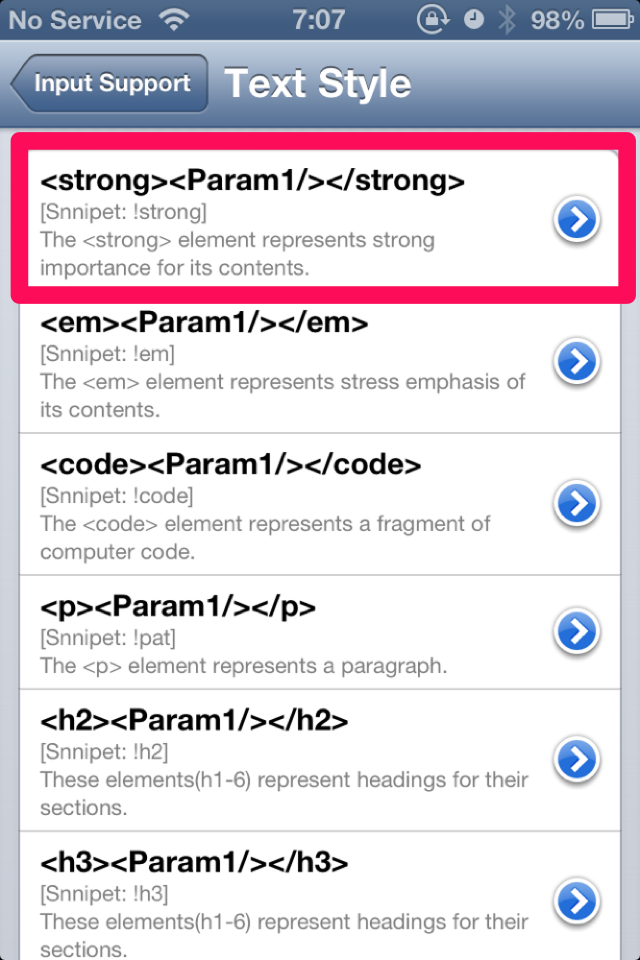
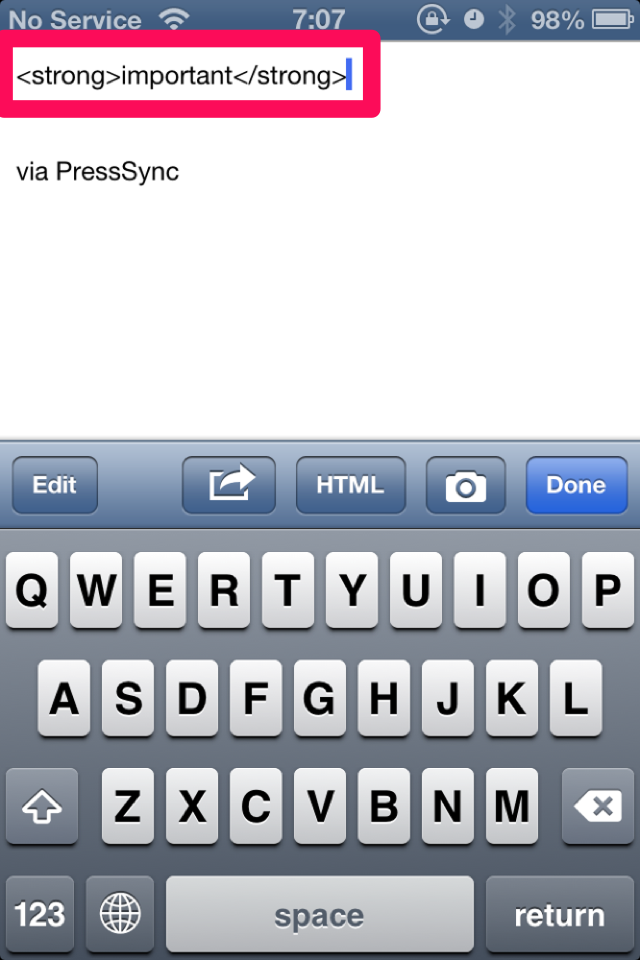
Example 1. When you select an input support in ‘strong’
When you select the “strong” in the state in the image below, will be inserted with the text selection has been sandwiched.
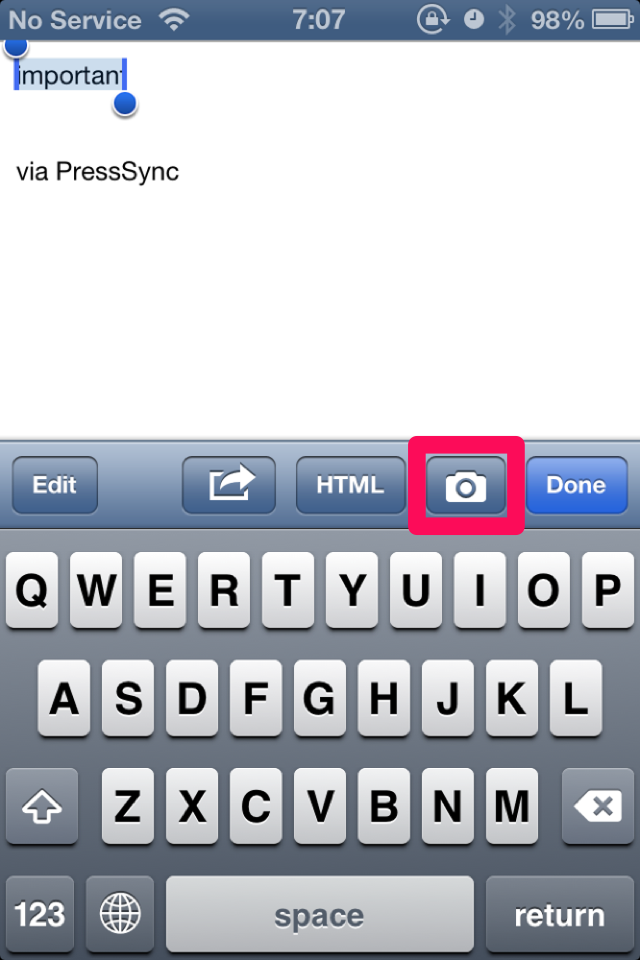
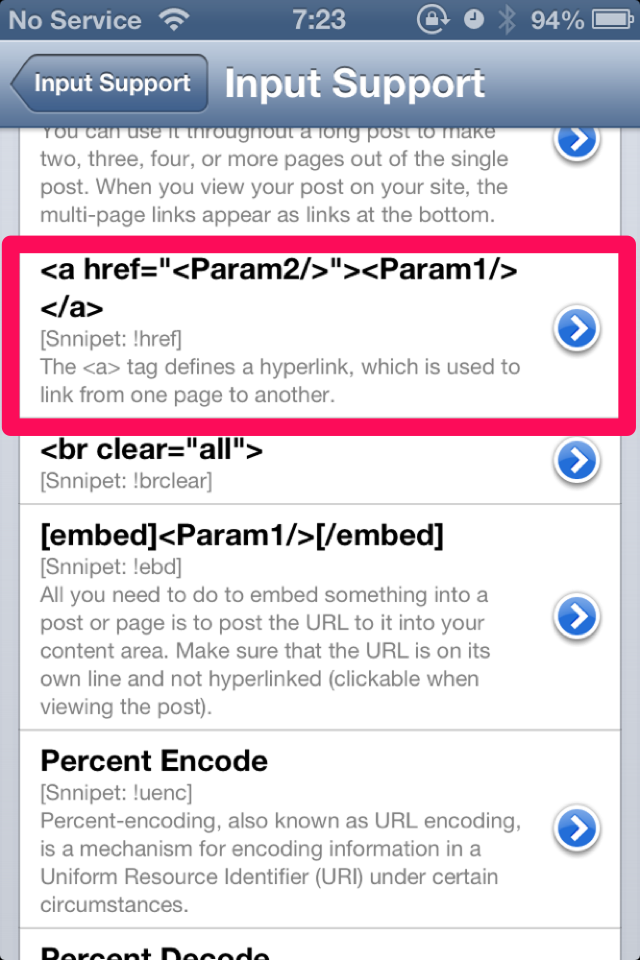
Example 2. When you select an input support in ‘href’
When you select the “href” in the state of the image below, the parameter input screen will be launched.
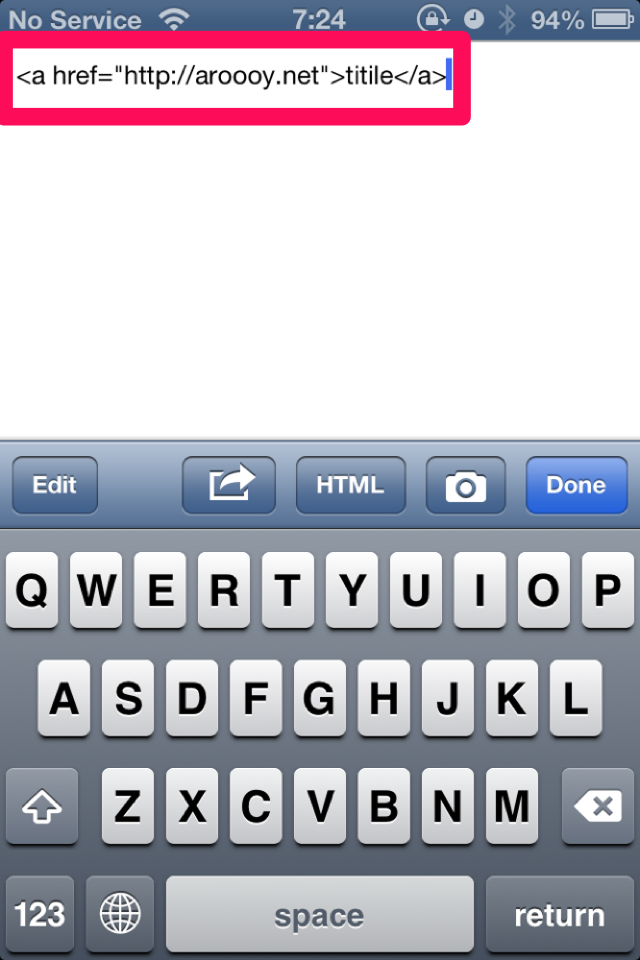
Please tap “Ok” and then enter the URL of your choice. Assembled text will be inserted.
Basic Usage
Screen “Input Support” Tap to launch the “HTML” button. Please select any of the items on this screen.
Use of the snippet
You can directly call any template by entering the snippet.
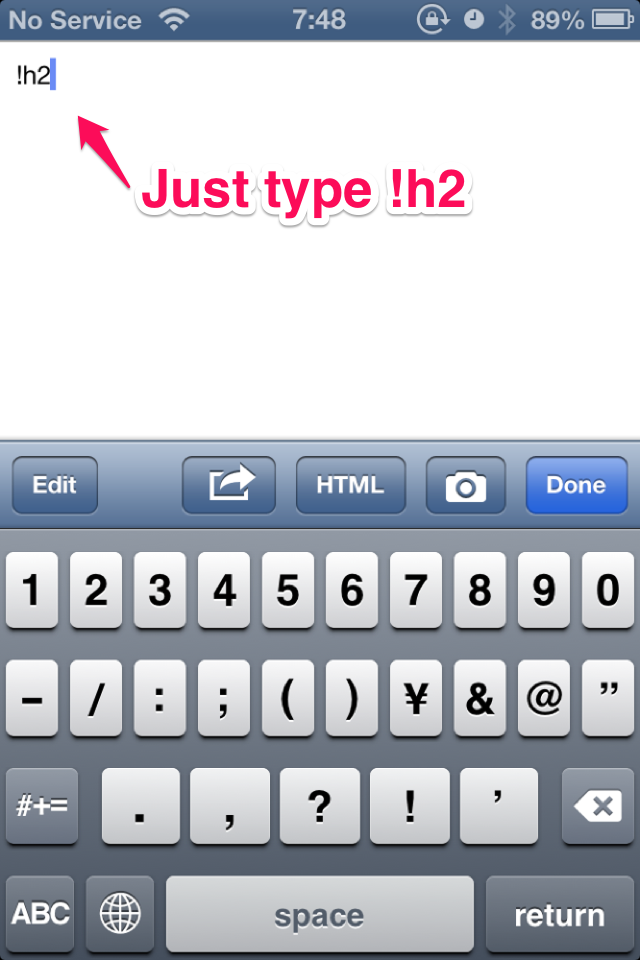
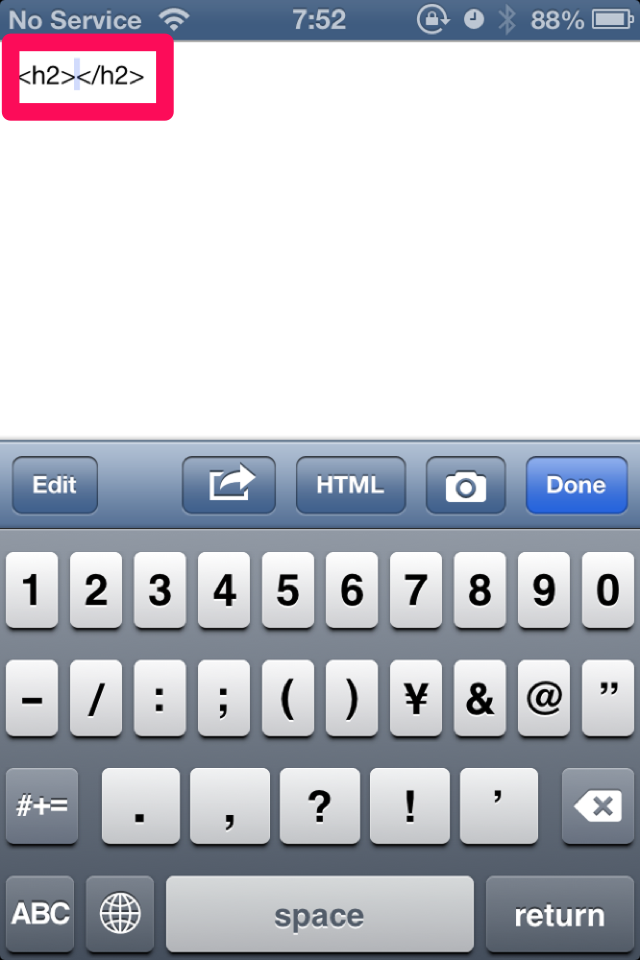
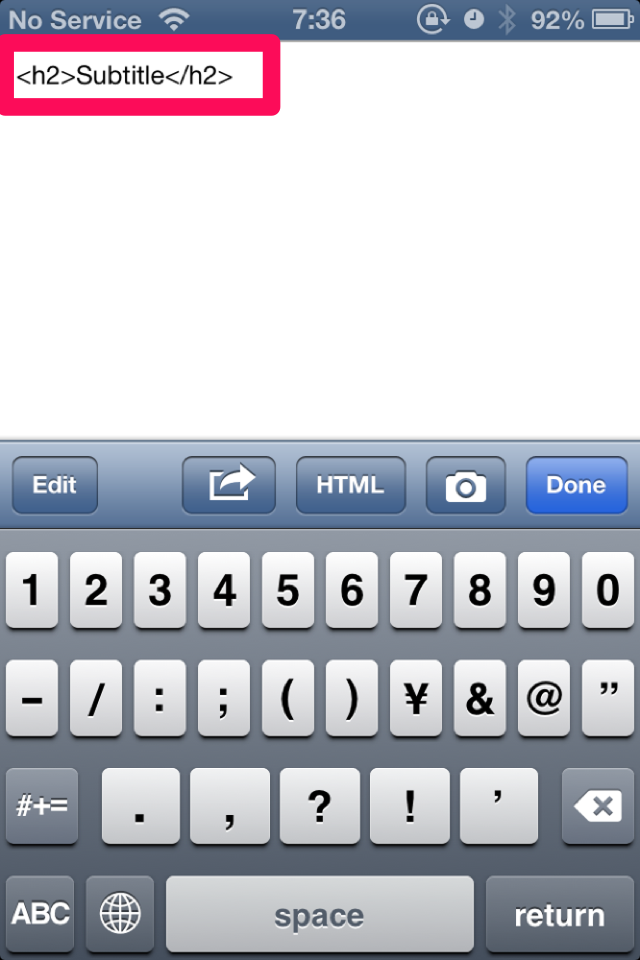
Example 1. If you call the ‘h2’
Please type “!H2”.
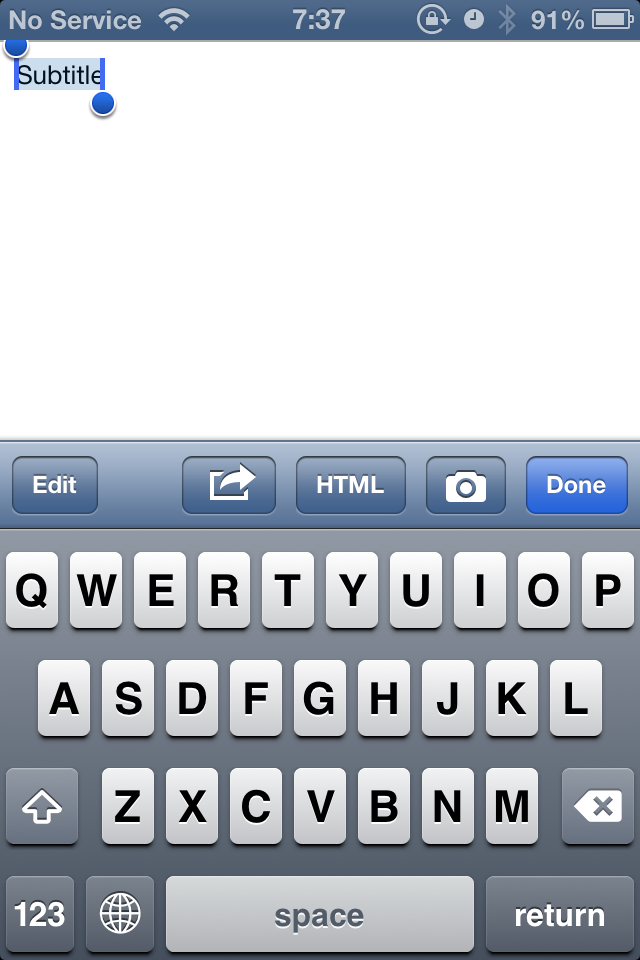
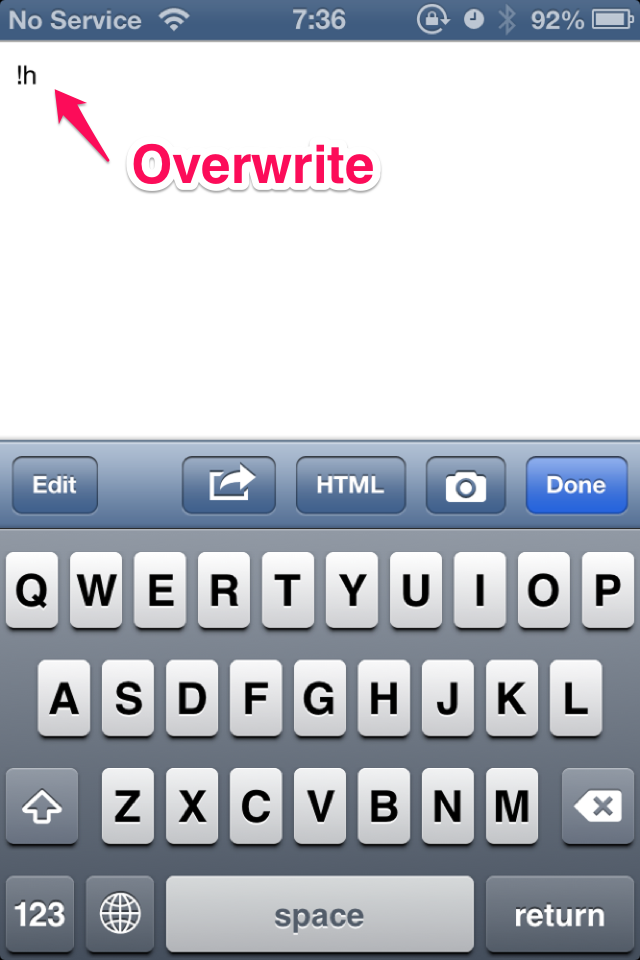
Example 2. If you call the ‘h2’ and then set the parameters
Please type “!H2” in the state you have selected the text.
via PressSync